
Photos, video & audio
An entry is more than text. Drop in a photo or several, a voice memo, a video from your computer, or a clip from YouTube — whatever made your day, so you can find it again later.
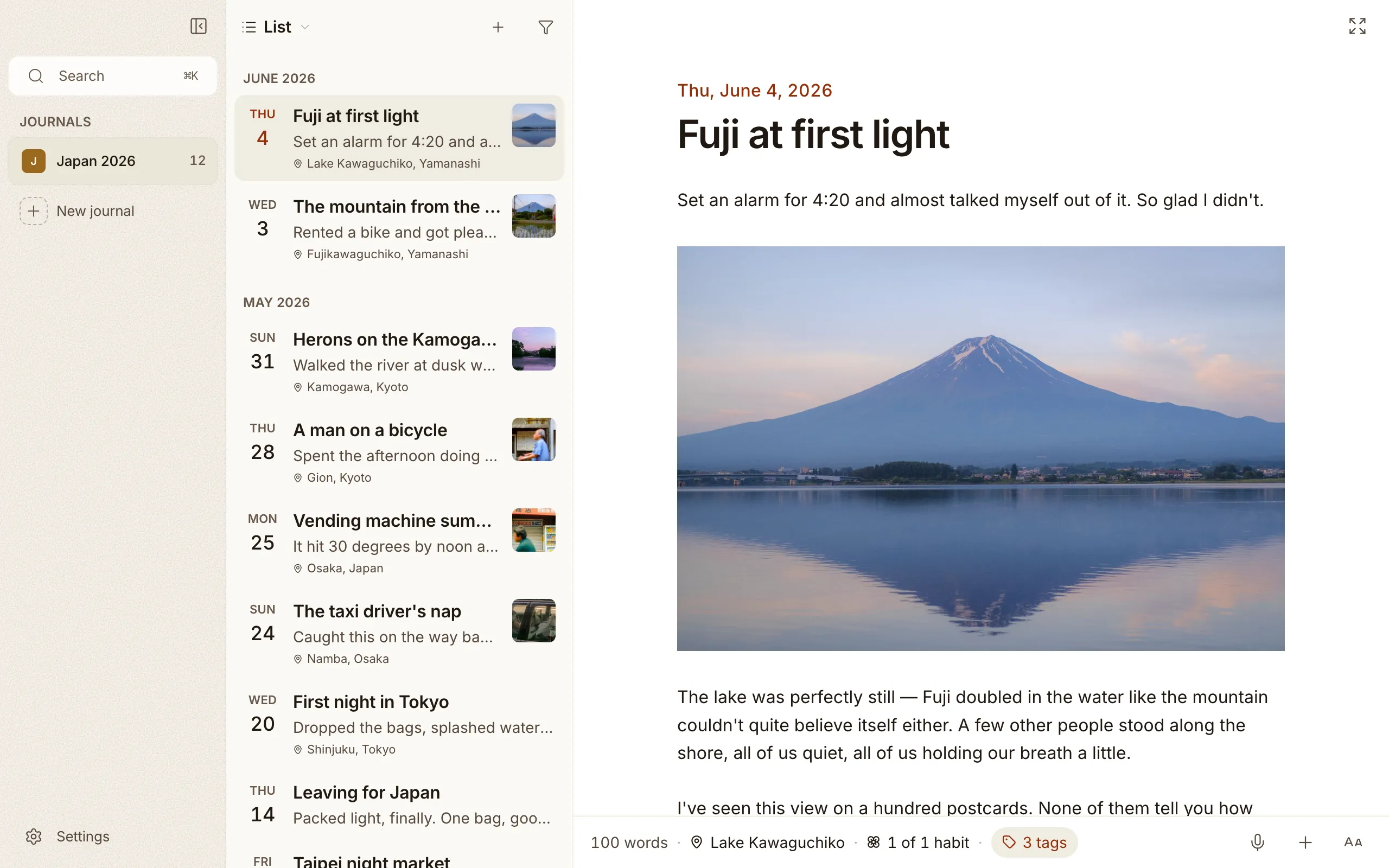
Adding media
Section titled “Adding media”Drag a file straight into an entry, use the toolbar’s image button, press
⌘⇧I, or type /photo. Cozy handles:
- Photos, including iPhone HEIC pictures — they render on Mac and Windows alike.
- Video, including iPhone
.movrecordings. Clips start playing right away and scrub smoothly when you drag the playhead. Nothing extra to install. - Audio, like a quick voice memo.
- YouTube clips, embedded inline. Click the poster to play; they won’t autoplay on you.
Photos and other media you add live right next to your entries in your journal folder, so your whole journal stays self-contained.
Moving and resizing
Section titled “Moving and resizing”- Move any photo, video, or audio to a new spot by dragging it within the entry.
- Resize an image by grabbing the little handle in its bottom-right corner and dragging to any width. Cozy remembers the size in the entry.
Galleries
Section titled “Galleries”Group photos into a tidy gallery instead of stacking them down the page:
- Right-click an image and choose Add to Gallery.
- Images line up two to a row, left to right, in the order you added them. Nothing is cropped, so tall and wide photos sit side by side at their natural shape.
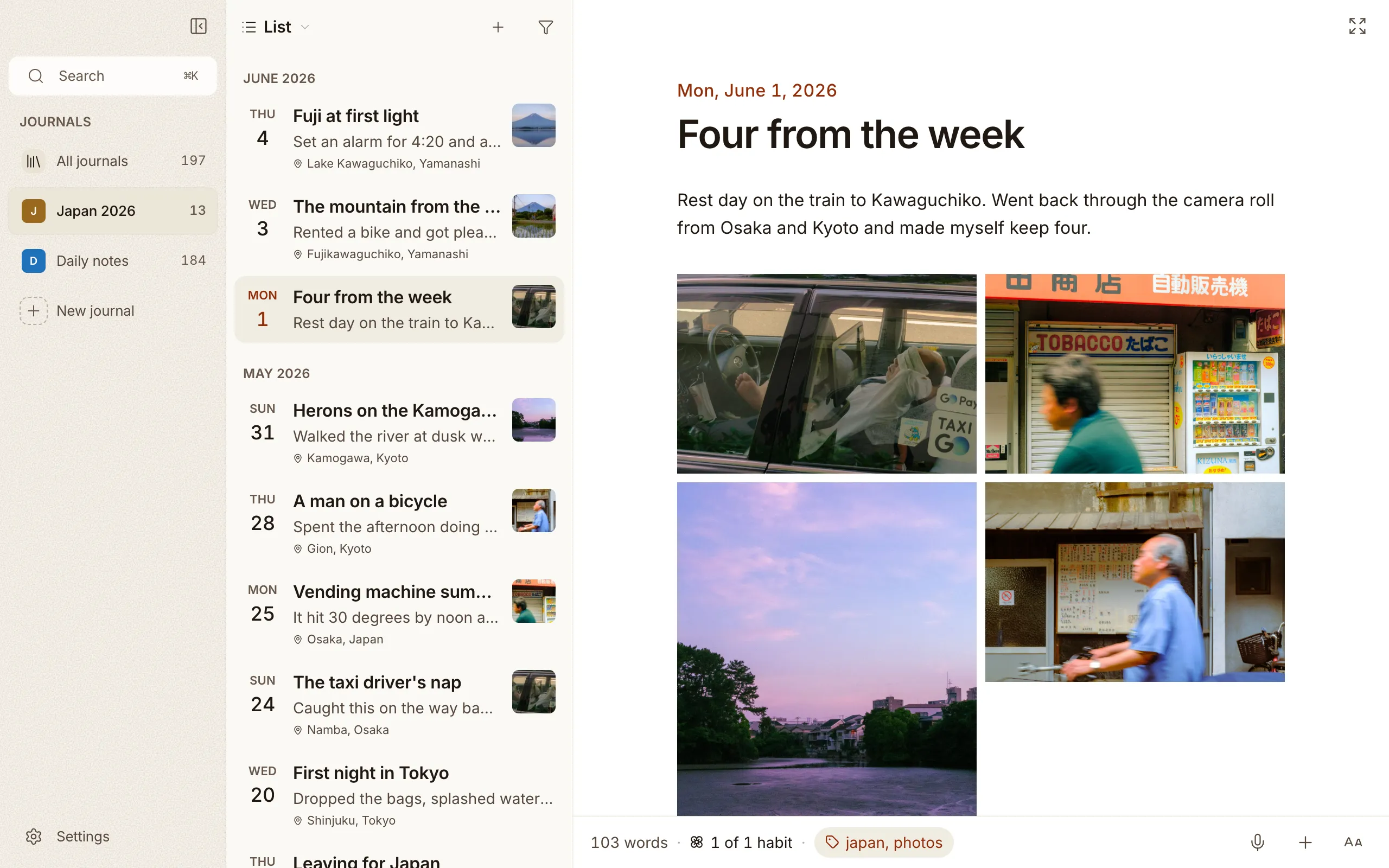
Drag a photo inside a gallery to move it, and the others slide aside to show you the arrangement you’d get before you let go. Any photo can go anywhere, however many are in the gallery. If you’d rather not drag, right-click a photo and use Move Earlier or Move Later.
Drag a photo out of a gallery to make it standalone again. Pull out the last one and the gallery quietly disappears.
Lightbox
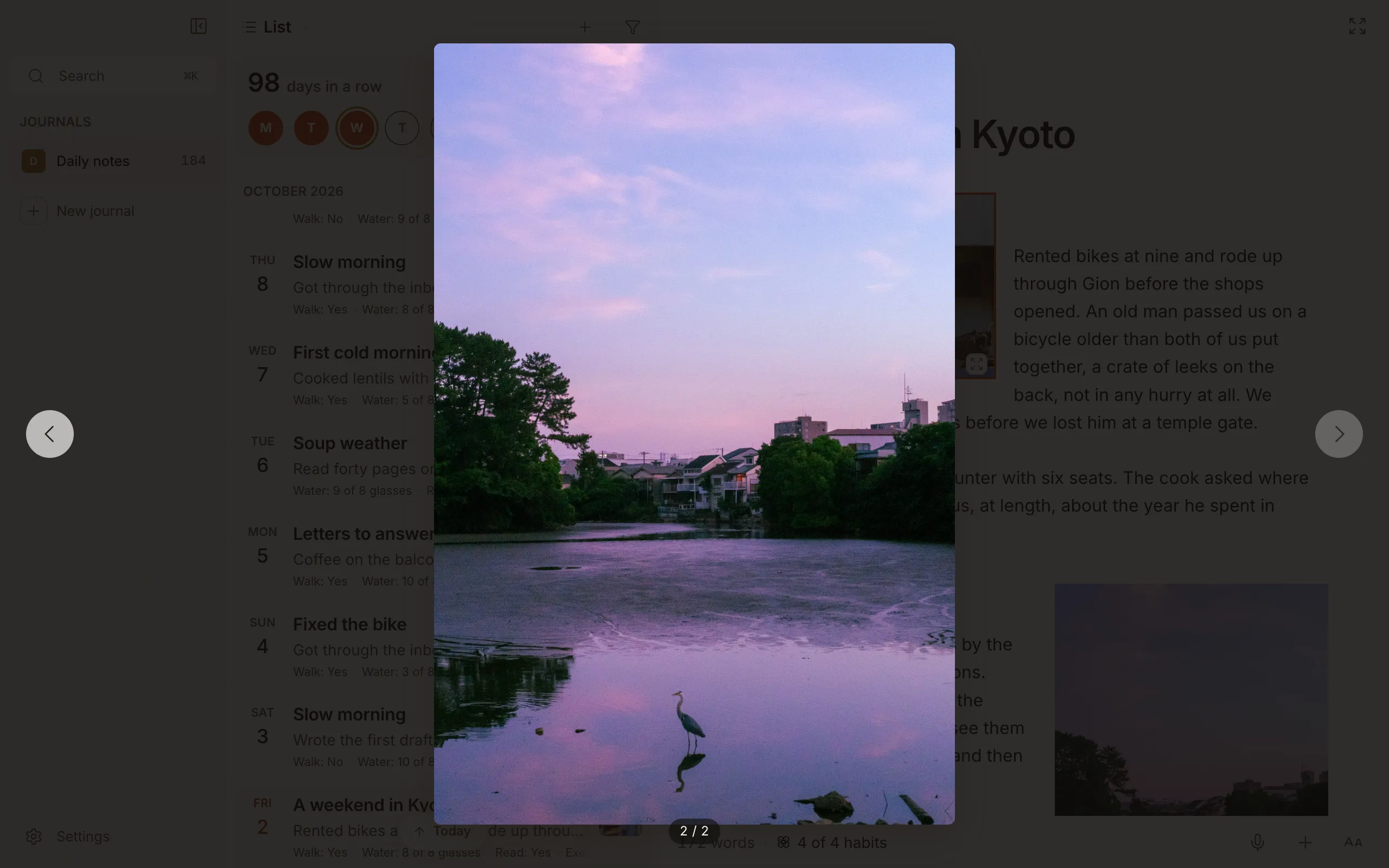
Section titled “Lightbox”Double-click any image to open it full-screen. A lightbox overlays the window with the photo at full resolution. Use the left and right arrows, or the ← → keys on the keyboard, to step through every photo in that entry, not just the gallery a photo happens to sit in. Paging stops at the first and last photo. A counter shows where you are. Press Escape or click outside to close.
Zoom in with a pinch on the trackpad, or double-click the photo. Once you’re zoomed in, panning is plain scrolling. Drag the photo down to close the viewer. Click the photo to hide the counter and caption, click again to bring them back. On iPhone, tap a photo to open it; the viewer runs edge to edge, and you pinch or double tap to zoom.
Wrapping text around images
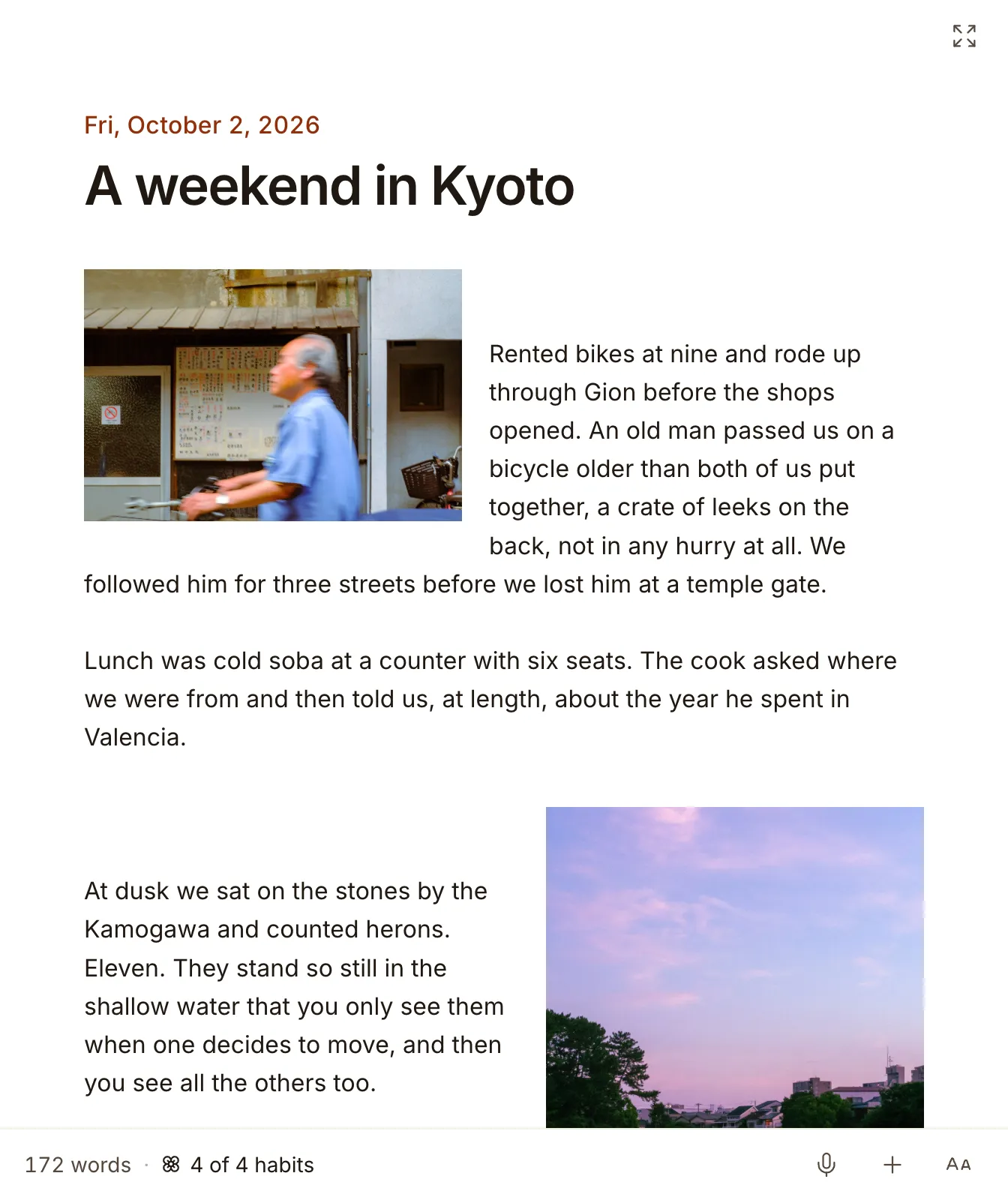
Section titled “Wrapping text around images”Click an image to bring up a small floating toolbar above it. Five layout options appear: block-left, centered, block-right, wrap-left, and wrap-right. The wrap modes float the image to one side so the paragraph beside it flows around it. Choosing a block mode puts the image back on its own line. You can still resize the image the usual way regardless of which layout you pick.
Choosing a cover
Section titled “Choosing a cover”For an entry with more than one photo, right-click the one you want and choose Use as Cover to set which image shows as the thumbnail in the sidebar. Leave it alone and Cozy uses the first image.
Video entries show their own first frame as the thumbnail, with a small play badge, captured right on your computer.