
Tags, places & habits
Cozy bends to the way you like to journal. Beyond your writing, each entry can carry tags, a location, and habits, all of which also unlock new ways to look back and filter your journal.
Add tags to an entry to group related days: travel, work, family,
whatever fits. Later you can filter your journal down to a single tag.
Press ⌘⇧T while you’re writing to open the tag picker. It has a search box to find existing tags and a + button to create a new one. Tags with no entries are removed from the list automatically, so the list stays tidy as your journal evolves.
Places
Section titled “Places”Mark where you wrote an entry by adding a location. Start typing in the location field and Cozy suggests matches as you go: a city, a landmark, a concert hall, a viaduct in the Highlands. Pick one and the entry keeps the place name and its coordinates, so two venues in the same city are two pins on the map.
The menu opens with Use current location, so if Cozy didn’t attach a place on its own you can just ask for it again. On a Mac, Cozy asks macOS directly where you are — the system will ask your permission the first time. Underneath sit your last three places until you start typing.
Place search runs on Apple Maps everywhere, the same lookup the Maps app makes. Offline, Cozy falls back to a city dataset bundled inside the app, so you can still tag a town with no signal.
Your own places
Section titled “Your own places”Some places have no name on a map: home, the bench by the river, your desk at the studio. A place starts from a real location. Give an entry one first, from the search or Use current location, then choose Name this place… in the editor’s + menu (or at the top of the location list) and call it Home. On iPhone it’s Name this place on the entry’s location, in Details.
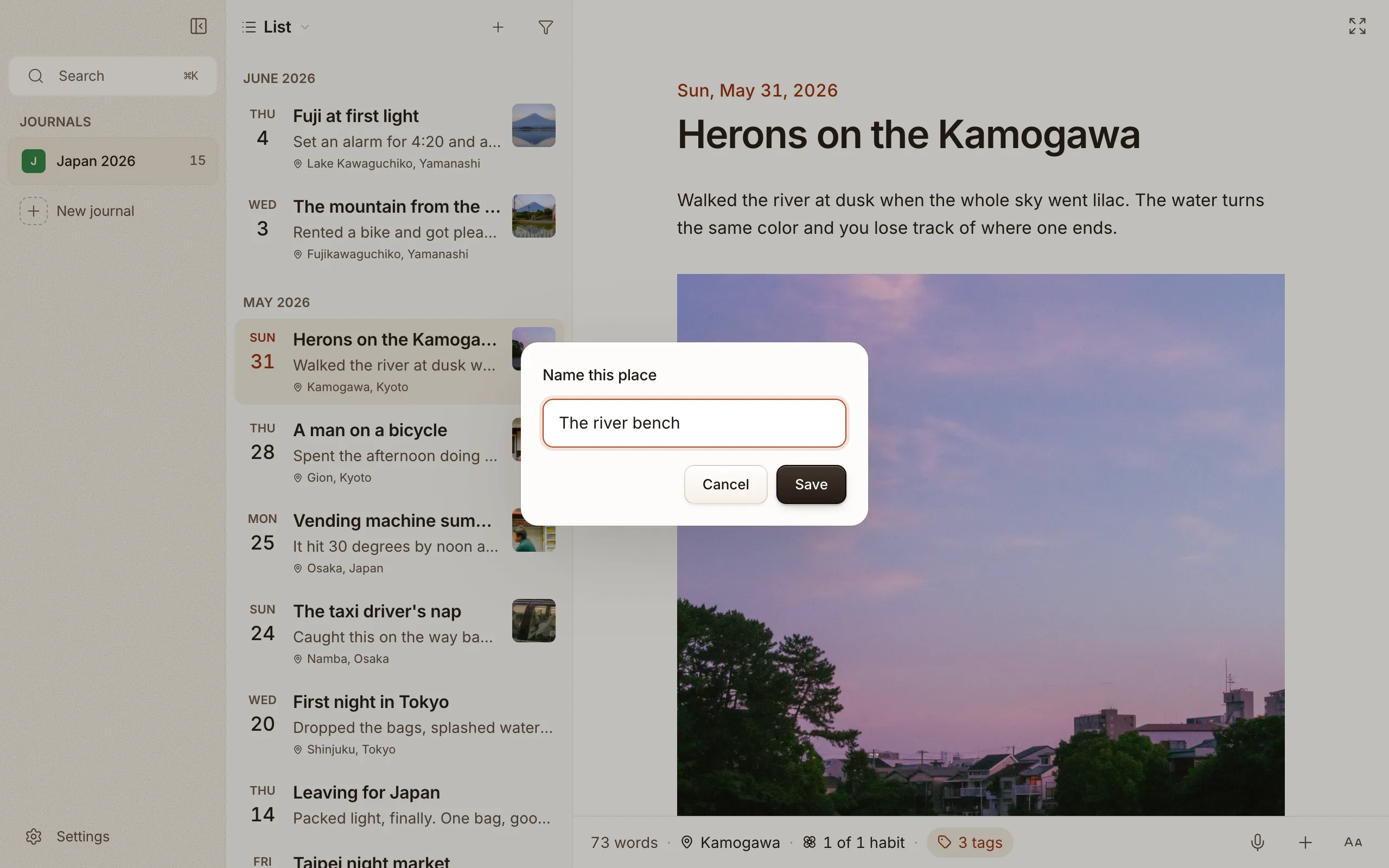
Every new entry written within 150 metres takes that name, and keeps its real coordinates for the map. Typing in the location field always searches: your own places come up first by name, then new addresses from Apple Maps. Rename or delete your places in Settings > Journal > Places. They’re saved in the journal folder, so your iPhone knows them too.
Removing a place
Section titled “Removing a place”Added a place by accident? Open the entry’s location chip and remove it. The place is wiped from the entry. Locations are also what power the map view.
Habits
Section titled “Habits”Habits are what you log in each entry: a walk, glasses of water, how the day felt. (Older posts call them trackers or custom fields. Same thing, new name.) Each one gets a card of squares in the Habits view, and a potted flower that grows as you keep it.
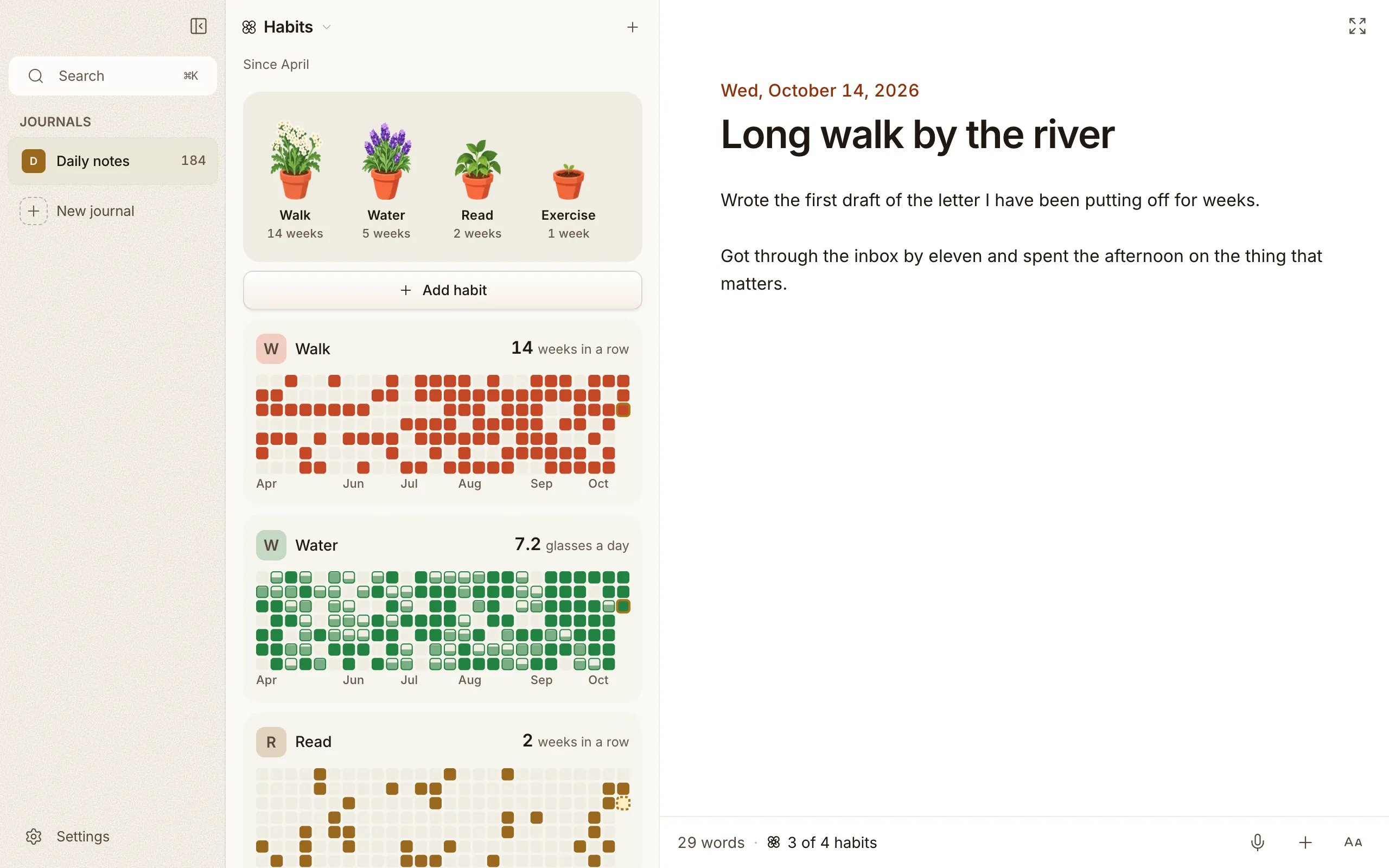
A new journal starts with a Mood habit (Great / Good / Meh / Low / Bad), so there’s something to try on day one. Change it or delete it whenever you like.
Adding a habit
Section titled “Adding a habit”Open the Habits view and click Add habit. Give it a name, then answer How will you know you did it?
- I did it or I didn’t: a yes or no. A tick in the entry fills that day’s square.
- I count it: a number, like glasses of water or pages read. Set a Goal each day and what it’s Counted in, or leave the goal empty and any amount counts. A day short of the goal fills its square partway.
- I pick how it went: a choice from options you write, like Great, Good, Meh.
Logging in an entry
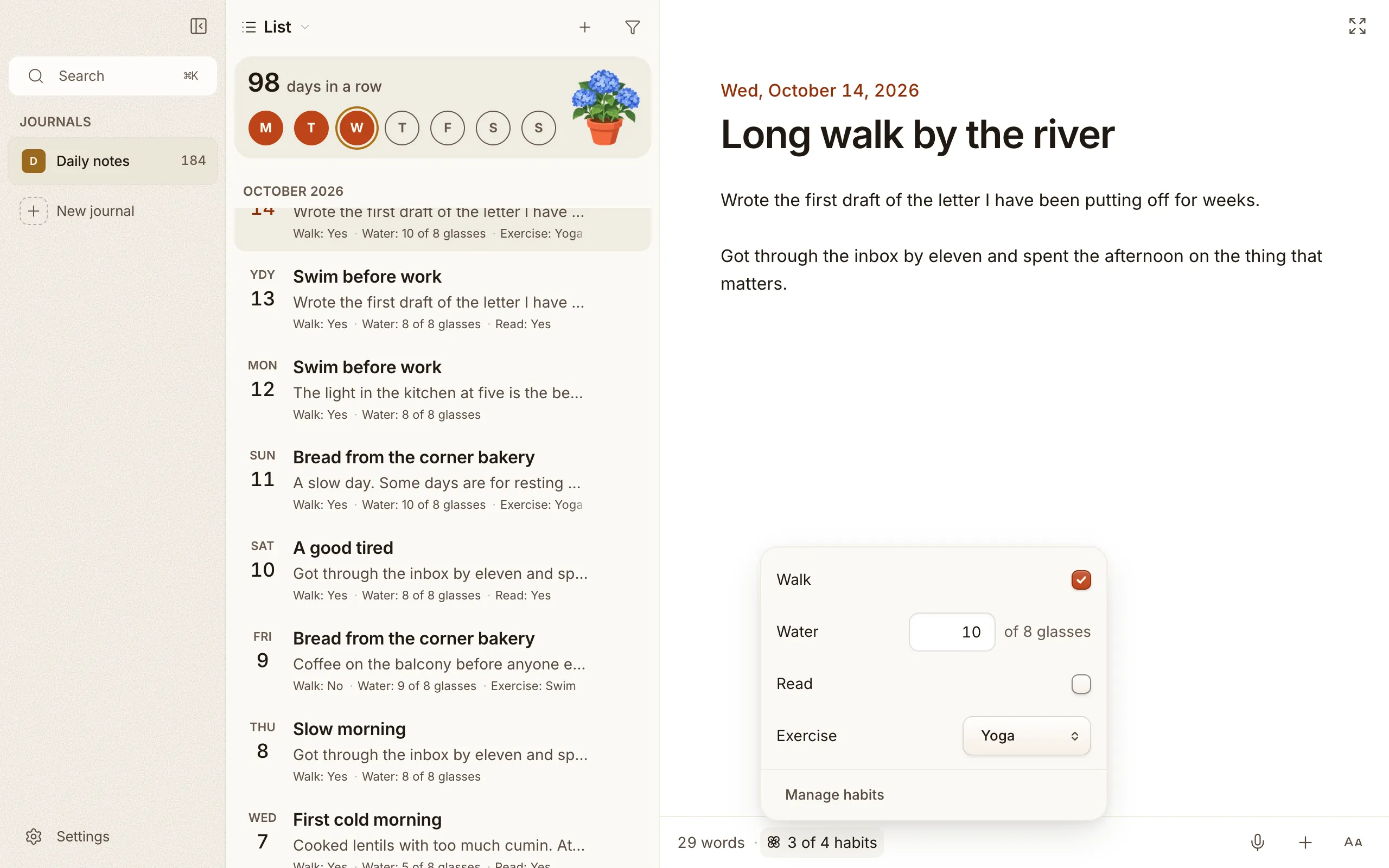
Section titled “Logging in an entry”Every habit sits behind one Habits chip at the bottom of the entry. Click it, or press ⌘⇧M, and they’re all there together: tick a yes or no, pick a choice, type a count. Pick Not logged to clear a choice. Manage habits at the bottom of the list takes you to the Habits view.
Changing a habit
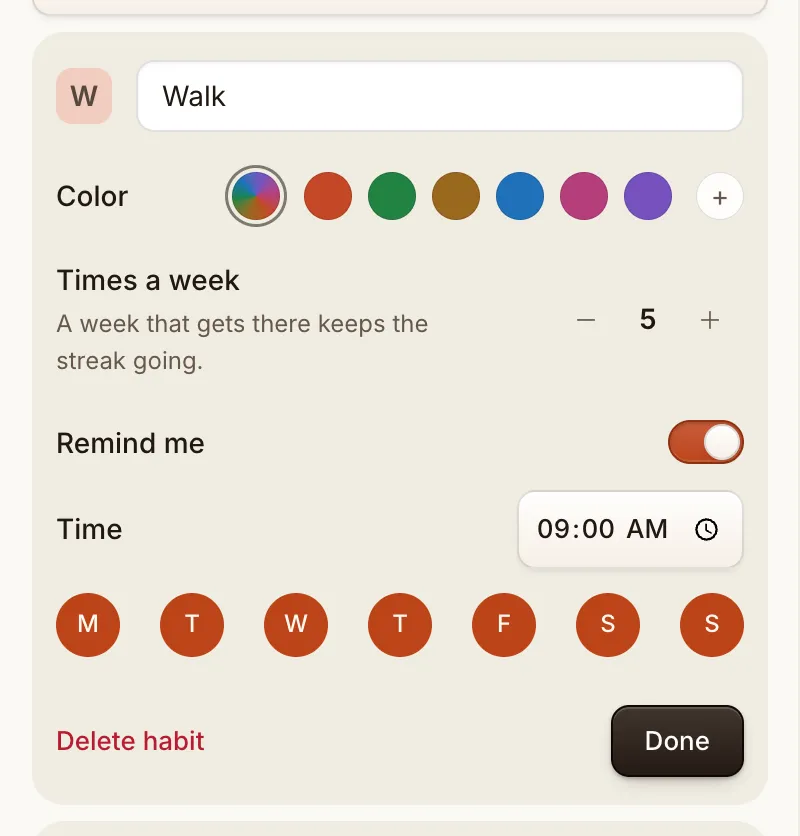
Section titled “Changing a habit”Click the pencil on a habit’s card to change it:
- Name and emoji. Rename a habit and Cozy rewrites every entry that logged it, so none are left on the old name. Type a name you already use and you’ll get a gentle note instead.
- Color. Each habit has its own, on the card and on its squares.
- Times a week. How many days a week the habit asks for. A week that gets there keeps the streak going, so a missed Tuesday on a five-a-week habit costs nothing.
- Options. For a choice, add, rename, remove and move options. Uncheck an option that means you didn’t do it, and it won’t fill the square. Mark one as Rest for a planned day off: it takes a day off that week’s target and never breaks a streak.
Drag a card by its handle to reorder your habits, or use the arrow keys.
Delete habit asks first. Your entries keep what they logged, so the values stay in your files even after the habit is gone.
Reminders
Section titled “Reminders”A habit can remind you, if you want it to. Open the habit’s card, turn on Remind me, then pick a time and the days. A day you already logged the habit stays quiet. Click the notification and Cozy opens on Habits.
For writing itself, turn on Remind me to write in Settings > System. It skips a day you already wrote, and clicking it opens a new page. On a Mac or a PC, reminders show while Cozy is open; on iPhone they arrive like any other notification. Nothing is on until you turn it on.
Filtering and the list
Section titled “Filtering and the list”Filter your journal by a habit’s value from the filter menu, under Habits (a count has no options, so it isn’t there). To see habit values under each entry in the list, turn on Habits under Show beneath entries in Settings.
Don’t want habits at all? Turn off Habits in Settings → Journal. That hides them everywhere, and what you logged stays in your entries.