
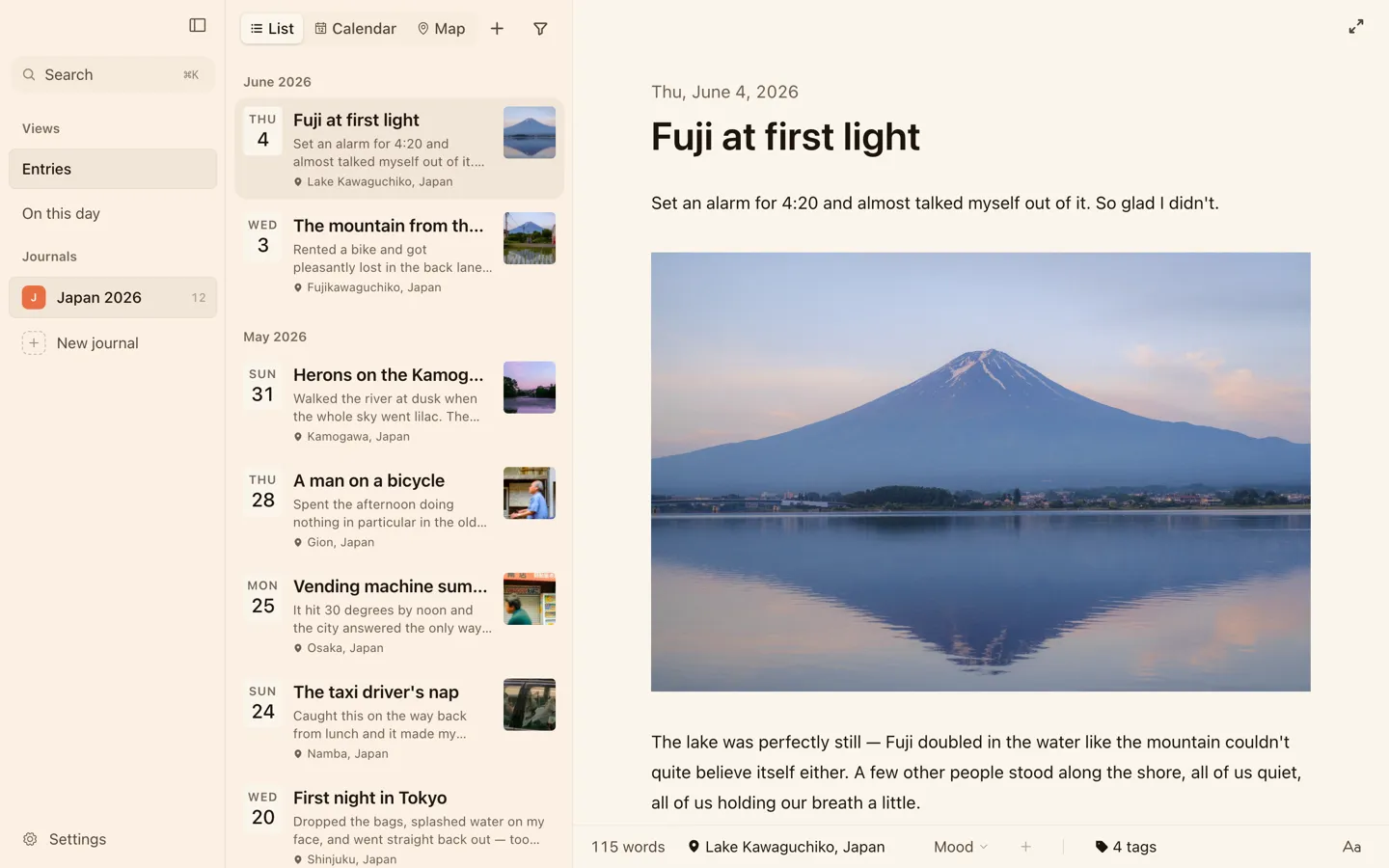
Most people who write to me about Cozy are leaving Day One. Four of the first six were. So here is the whole move, start to finish, with the parts that don’t survive it written down instead of left as a surprise.
Nothing here touches your Day One account. An export is a copy, so if you change your mind, you close Cozy and carry on where you were.
What you need
- Day One, with the journal you want to bring over.
- Cozy on your Mac or PC, with your license activated. The import writes files, so it needs an activated copy. There’s a 14-day refund if it turns out not to be for you.
- A few minutes. Longer if your archive is large and full of photos, because every photo gets copied to disk.
1. Export from Day One as JSON
In Day One, choose File → Export → JSON. Day One writes a .zip file, usually to your Downloads folder. That zip holds your entries and every photo, video and recording attached to them.
It has to be the JSON export. Day One’s PDF and plain-text exports are made for reading, not for moving: they leave the dates, tags and places behind.
If you keep more than one journal in Day One, export all of them. Cozy reads a zip with several journals in it.
2. Open Cozy and choose Import from Day One
On Cozy’s welcome screen, under Already have a journal? Bring it over., press Import next to Day One and pick the zip you just exported.
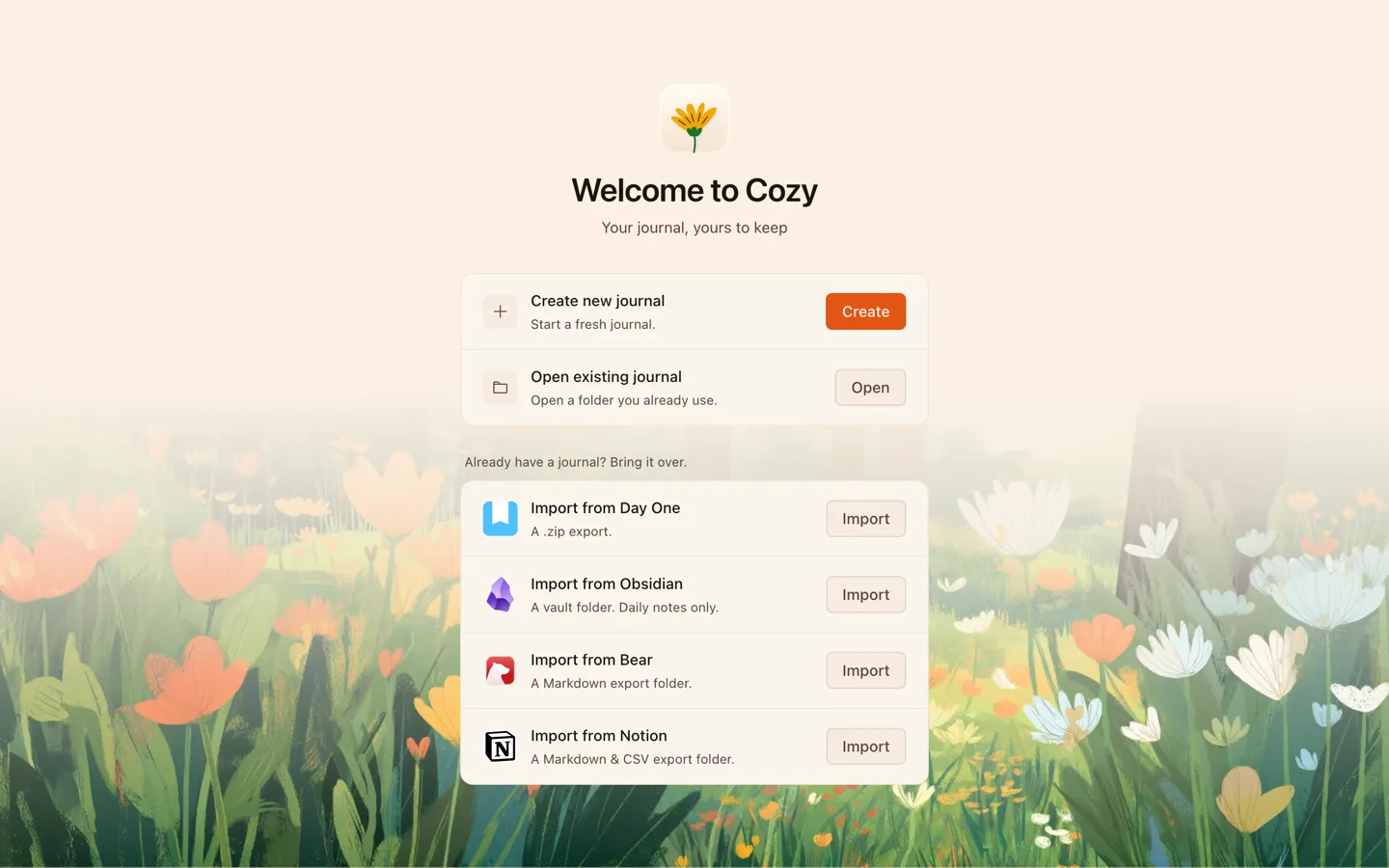
Already writing in Cozy? Use File → Import → From Day One… instead, and the entries are merged into the journal you have open.
3. Name it, and say where it lives
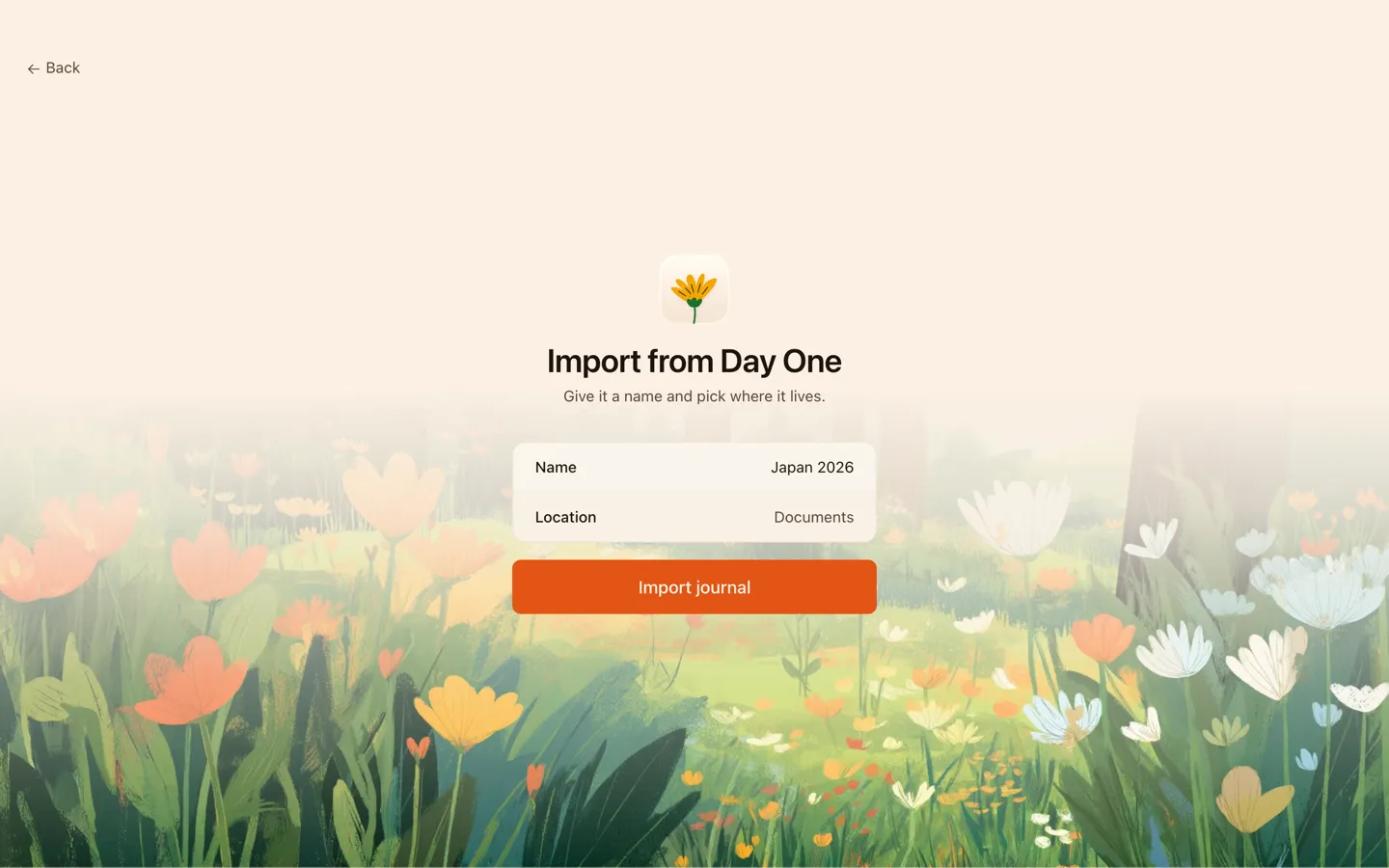
Cozy asks for a name and a folder. That folder is your journal from now on: plain text files you can open with any text editor, with your photos in an attachments folder next to them. If you want the journal on your iPhone or iPad later, put it in iCloud Drive. It’s the only place iOS lets an app read a folder from.
4. Let it run
Cozy reads the zip on your computer. Nothing is uploaded, and there’s no account to make. It writes one file per entry, then copies every photo, video and recording into the journal folder. A small journal is done in seconds; a big archive takes longer, because every photo has to be copied.
Here’s the whole thing, at the speed it actually ran:
When it’s done, your journal opens on the newest entry, photos and all.
What comes across
- Every entry, filed on the day you wrote it, in the timezone you were in.
- Titles. Day One’s first heading becomes the entry title. Untitled entries take their date as a title instead of arriving blank.
- Photos and videos, copied into the journal folder.
- Audio recordings and PDF attachments.
- Tags, as they were.
- Favourites, as a tag called
starred, so you can still find them. - Places, with their coordinates, so imported entries show up on Cozy’s map.
What doesn’t
Better you read this now than find it out afterwards.
- The time of day. Cozy files an entry by its calendar day, not by the minute. Two entries written on the same day stay two separate entries, but the clock time isn’t kept.
- Day One’s automatic metadata: weather, step count, the music that was playing, the device you wrote on.
- Separate journals. Everything in the export lands in one Cozy journal. The tags come with it, so the entries are still yours to sort.
- Templates, reminders, prompts and shared journals. Day One leaves them out of the export, so there’s nothing to bring.
- Day One’s sync and encryption. Cozy keeps your journal on your device. If you want it on more than one, you sync the folder yourself.
If it doesn’t look right
One customer’s import came out as an empty journal with no photos, at the worst possible moment for it to happen. That bug is fixed, and a test now runs a real Day One export, photos included, before every release.
If your import still looks wrong, nothing is lost. The zip is a copy and your Day One journal is untouched, so you can delete the folder Cozy made and import again as many times as you like. Then email me and tell me what you saw. I’d rather hear about it than have you leave quietly.
After the move
Your journal is now a folder of plain files with your photos beside them. Back it up, put it in iCloud Drive or Dropbox to sync it between computers, or open it in any other app. It doesn’t need Cozy to stay readable.
Still deciding? Read the full case for Cozy as a Day One alternative, or the wider look at the best journal apps for Mac if you want to see what else is out there first. If you’re coming from Obsidian, Bear or Notion instead, the import notes in the docs cover those.
Not sure Cozy is the right place yet? The best journaling apps compared lays out what else is out there.